


IT & Help Desk
The Information Technology (IT) Department provides reliable, up-to-date, effective, secure, and integrated technology solutions and information services to empower students, faculty and staff to meet their goals in support of the mission of the university.
The IT Help Desk is your initial point of contact for the Information Technology department. If you are having difficulties accessing Regent systems (Financial Aid Dashboard, Canvas, Email, etc.), need your password reset, or are having issues with a Regent University computer, the IT Help Desk is here to help!
Contact Details:
COM 300
IT Help Desk 757.352.4076
helpdesk@regent.edu
M-F: 8 a.m. – 5 p.m. (Office Hours)
M-F: 8 a.m. – 9 p.m. (Calling Hours)

Duo Security is implementing critical security updates that will affect how you authenticate to Regent University systems. Users with outdated Duo Mobile apps or older device operating systems must update before March 1, 2026, or they will be unable to log in to any University systems.
Who’s Affected
You are affected if:
- Your Duo Mobile app version is older than 4.85.0
- Keep in mind that version 4.103.0 and version 4.104.0 are newer. The numbering can be confusing.
- Your iPhone is running iOS 15 or older
- Your Android device is running Android 10 or older
Critical Deadlines
March 1, 2026 (Immediate Action Required)
- Duo Mobile app versions older than 4.85.0 will stop receiving push notifications
- iOS 15 and older will no longer be supported
- Android 10 and older will no longer be supported
April 2026 (Additional Changes Coming)
- iOS devices must be running iOS 17 or newer
- Android devices must be running Android 12 or newer
What You Need to Do Now
Update Your Device and Duo Mobile App
- Update your phone’s operating system:
- iPhone: Update to iOS 17 or newer
- Android: Update to Android 12 or newer
- Update your Duo Mobile app:
- Open your device’s app store (App Store or Google Play)
- Search for “Duo Mobile”
- Tap “Update” if available
- Verify your app version is 4.85.0 or higher. For example, version 4.103.0 (Android) and version 4.104.0 (Apple) are newer
Need More Time to Update?
If you need additional time to update your device or operating system, you can temporarily use rotating passcodes while working on your updates:
- DO NOT uninstall your current Duo Mobile app – it will continue to generate passcodes
- When logging in, select “Enter a Passcode” instead of waiting for a push notification
- Open your Duo Mobile app and use the 6-digit rotating code displayed
- Enter the code in the login prompt
Important: This is a temporary solution only. You must still update your device and app. Once you uninstall the app from an unsupported device, you will not be able to reinstall it.
How to Check Your Versions

With the Duo Mobile app open, click on the Menu button (1) and then look at the version listed at the bottom (2).
Check Your Device Operating System
iPhone:
- Go to Settings
- Tap General
- Tap About
- Look for “iOS Version”
Android:
- Go to Settings
- Tap About Phone (or About Device)
- Look for “Android Version”
Need Help?
If you are unable to update, have uninstalled your app and can’t log in, or have any questions, contact the IT Help Desk:
- Phone: 757.352.4076
- Email: helpdesk@regent.edu
- Office Hours: Monday – Friday, 8 a.m. – 5 p.m.
- Calling Hours: Monday – Friday, 8 a.m. – 9 p.m.
Duo Resources
The following Duo links reference a February 1, 2026 change, but Regent was able to get an extension to March 1, 2026.
tl;dr | Student DUO Registration
- Students must register with Regent DUO to log into MyRegent.
- If you have not already registered for Regent DUO, check your Regent student email by going directly to gmail.com and logging in with your Regent student email address and password.
- Find the registration email with the subject “Regent University – Duo Security Enrollment.”
- Follow the Registration Steps to enroll your phone (smartphone preferred).
- Go to my.regent.edu and login!
What is Duo Security?

Duo Security is a company that provides a cloud-based software service that utilizes two-factor authentication to ensure secure access to services and data.
Learn more by clicking here.
What is two-factor authentication?
Two-factor authentication provides a second layer of security to any type of login, requiring extra information or a physical device to log in, in addition to your password.
By requiring two different channels of authentication, we can protect user logins from remote attacks that may exploit stolen usernames and passwords.
The factors may include:

Something you know:
A unique username and password.

Something you have:
A smartphone with an app to approve authentication requests.

Something you are:
Biometrics – like your fingerprint or a retina scan.
Why do we need two-factor authentication?
Login credentials are more valuable than ever and are increasingly easy to compromise. Over 90% of breaches today involve compromised usernames and passwords.
Two-factor authentication enhances the security of your account by using a secondary device to verify your identity. This prevents anyone but you from accessing your account, even if they know your password.
How will Duo change my login experience?
When logging in to a Regent University web application that is protected by Duo, you will still enter your username and password.After inputting your login information, Duo requires you to complete a method of second-factor authentication when working remotely.
Duo does not replace or require you to change your username and password. Think of Duo as a layer of security added to your pre-existing login method.
Log in using your MyRegent ID and password.
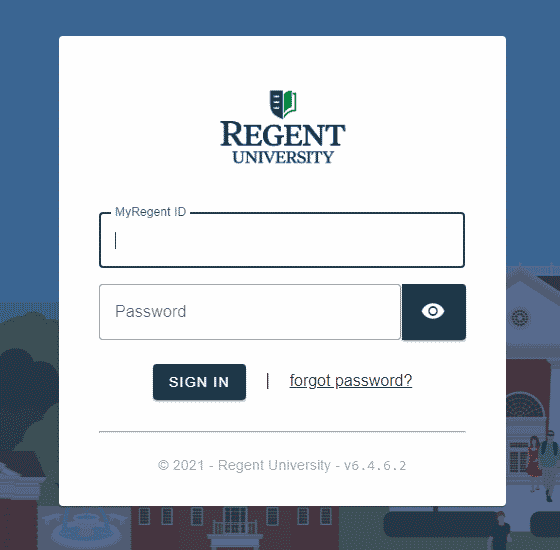
When off campus you will be prompted by the Duo Login Prompt:
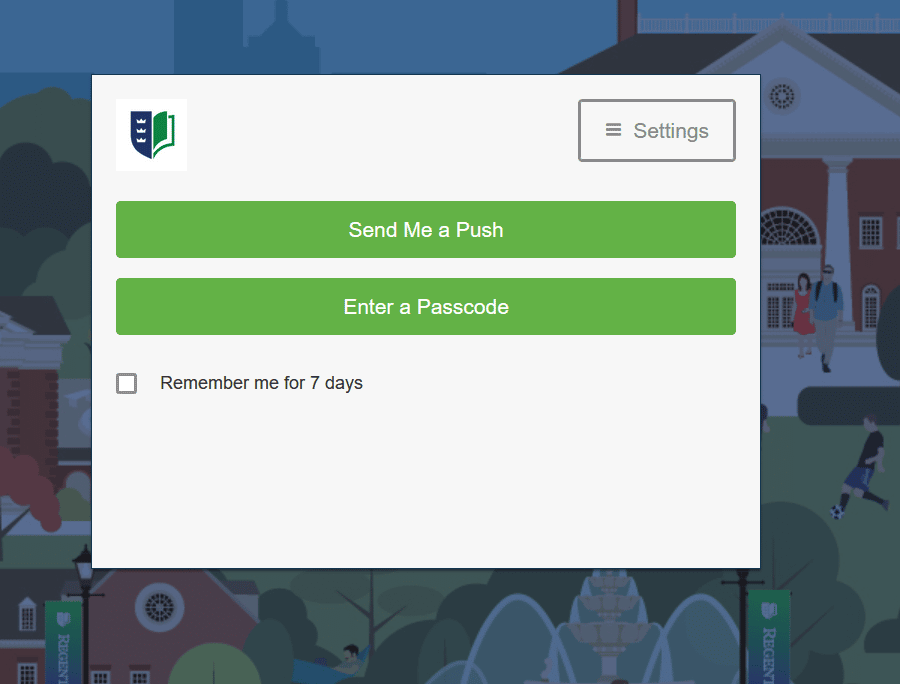
The DUO service will use your chosen authentication method (a prompt within the mobile App, a text or phone call, or a rotating code) to ensure that the person logging in is really you.
You will be receiving an email from Duo Security with the subject “Regent University – Duo Security Enrollment”:
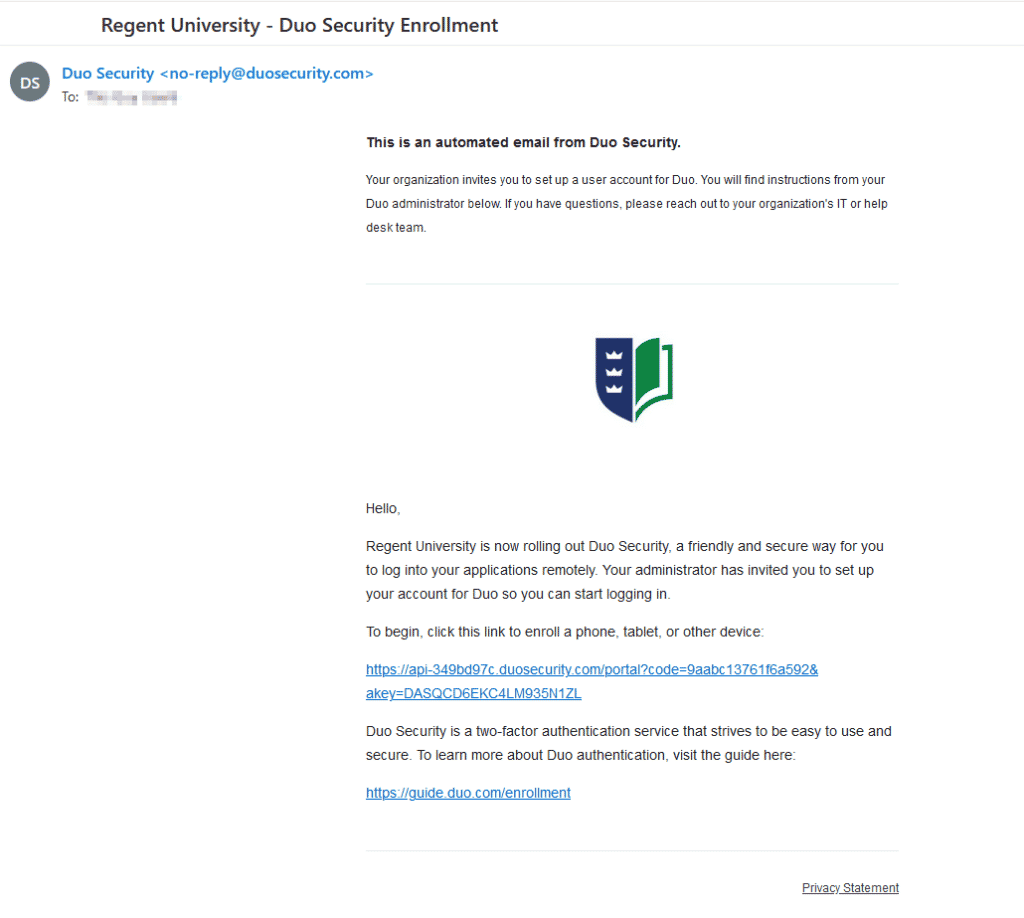
The link provided will enable you to enroll in the Duo Security system.
Alternately, once enforcement begins you will directed to a page like this if you have not yet enrolled when logging on to a protected Regent University page:
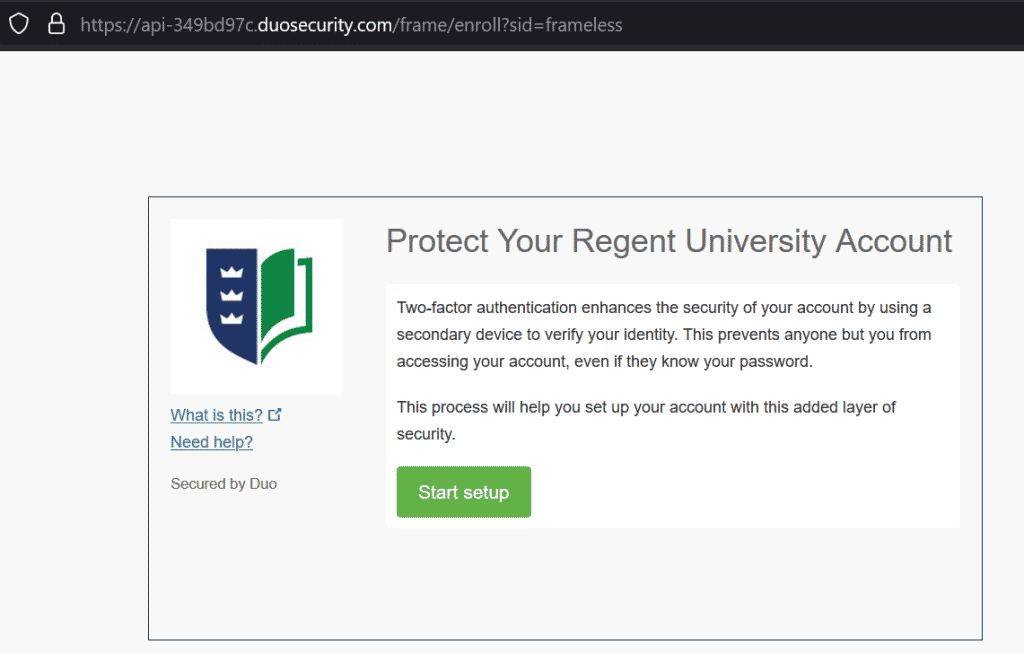
During setup you will need to select a device which will be your primary method of authentication by the system.
A mobile phone is recommended.
After setup is complete additional devices may be enrolled on your account.
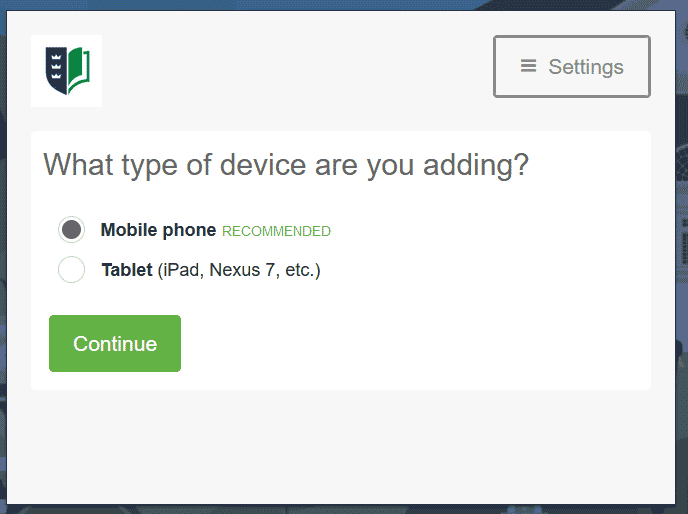
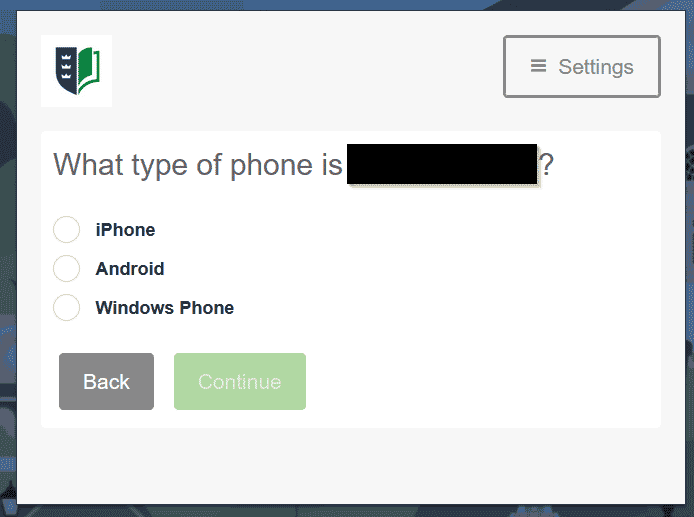
You will be prompted to enter the mobile number for the device, then to indicate what type of device it is:
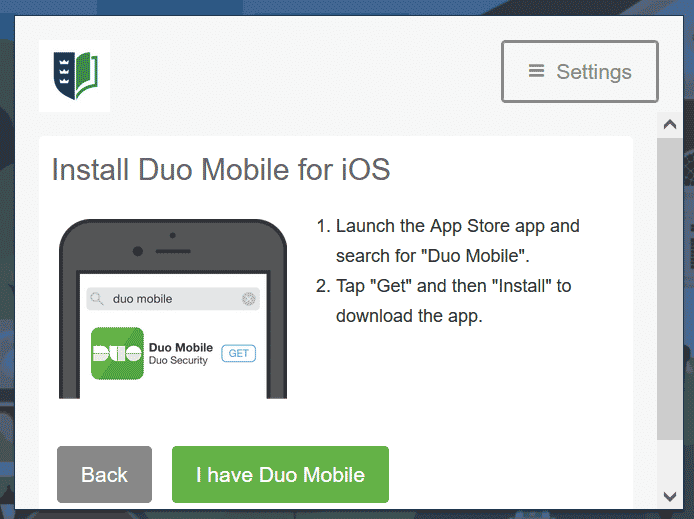
You will next be prompted to install Duo Mobile for your mobile operating system:
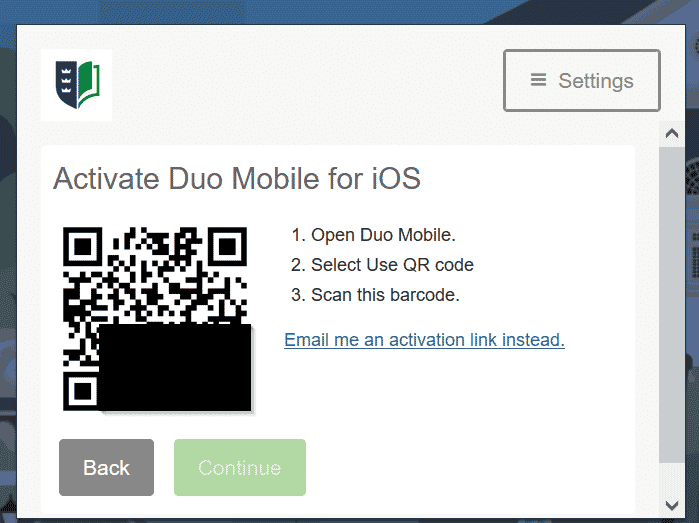
You will next be prompted to activate Duo Mobile and presented with a QR code.
The easiest method is to press the + icon in the app for add account and choose “Use QR code” in order to scan the code provided. Alternately you can click the option to have an activation link emailed to you and click that link from your mobile device.
Lastly you will be shown your Devices & Settings page:
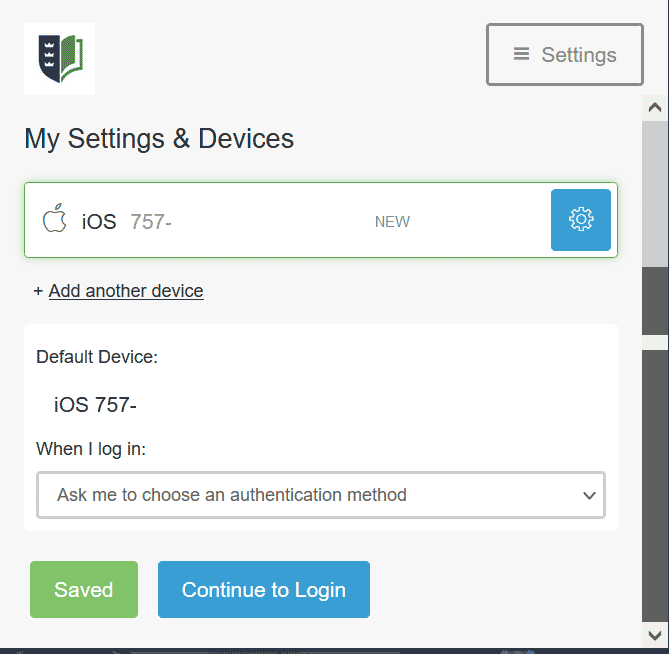
The default option “Ask me to choose an authentication method” is recommended.
Your device is now enrolled, and you will be presented with the default login prompt as shown above.
Login Options
When using Duo Mobile, you have the option of authenticating by Push notification or by passcode.
- Push notification is the easiest method – choosing this should (in most cases) present a pop-up on your device’s home screen, similar to this

Depending on your notification settings, the pop-up could be suppressed, in which case you can open the Duo Mobile app after selecting this option.
The login details are shown:
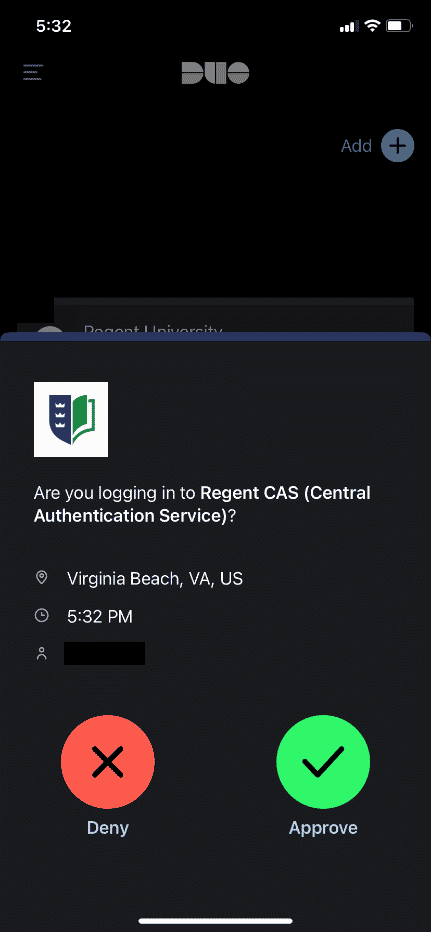
Take the time to note the location, time and username shown before approving the login to make sure they are as expected. If there are any discrepancies this could be an unauthorized attempt to gain access to your account and you could click DENY. (See FAQ for more info.)
- Passcode authentication can be used once Duo is activated on your device, for logging in when a mobile or wifi signal is not available.
In order to view the passcode you may need to tap on the account name (“Regent University”) within your Duo Mobile app:
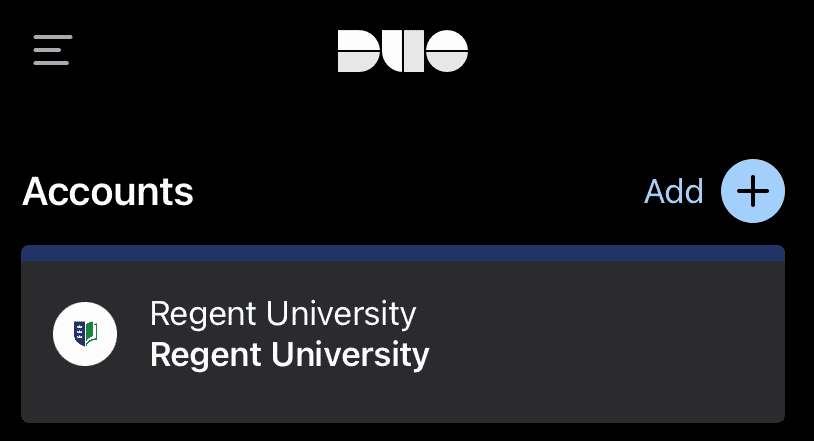
The codes shown rotate on a time basis and are keyed to your account:
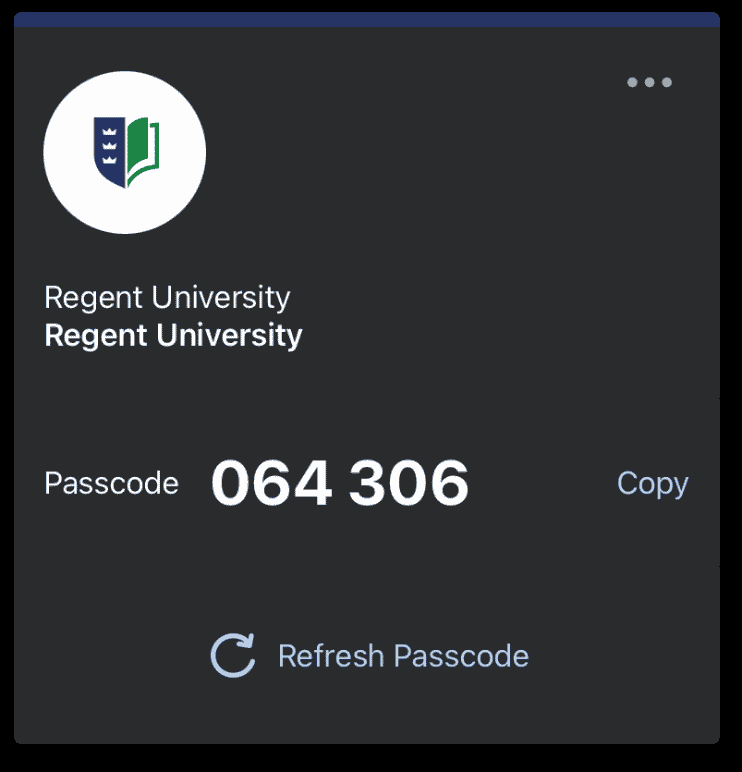
If the first code shown does not work it may have already expired. Selecting “Refresh Passcode” will update to the currently valid one.
Canvas Support
Regent students, faculty, and staff have access to Canvas Support by emailing helpdesk@regent.edu or by calling the IT Help Desk at 757.352.4076 and selecting the option for Canvas. The office hours for the IT Help Desk are Monday through Friday from 8 a.m. to 9 p.m. ET.
Microsoft Office 365 for Students, Faculty, and Staff
All current Regent University Students, Faculty, and Staff have access to Microsoft’s Office 365 at no cost. Accessing Office 365 is simple and provides you with Office for PC, Mac and a number of mobile platforms. Click here for more information.
IBM SPSS
Available for on- and off-campus installation. For more information, please click here.
MINITAB
Now available for off-campus install. For more information, please click here.
MyRegent is your portal into many of the systems and services available to you at Regent University. We recommend using the MyRegent Portal for integrated access to all of your online Regent resources. After logging in to the MyRegent Portal, you can conveniently access your Student Mail by Google, Canvas, Financial Aid Dashboard, DegreeWorks, and the library Databases as well as many other Regent Systems. You can log in to the MyRegent Portal at my.regent.edu.
Upon acceptance to Regent University and processing of the enrollment deposit, you will receive an email to your personal email address with instructions on how to initialize your MyRegent account. Your MyRegent account username will be created using portions of your first and last name. Please note that your Regent Student ID is separate from your MyRegent account username. The MyRegent account username is also used to create your Student Mail by Google account in the form of myregentusername@mail.regent.edu. Once your MyRegent account password is created, you may login to the MyRegent portal at my.regent.edu. Your MyRegent account password is automatically synchronized to be the same as your Student Mail by Google account password.
Regent University recommends changing your MyRegent account password at least every 180 days by going to www.regent.edu/password.
RegentALERT is an Emergency Notification System (ENS). Its primary purpose is to notify Regent faculty, staff and on campus students in the event of an emergency on or near campus, such as a man-made or natural disaster. Be sure to update your RegentALERT contact information the next time you log in to my.regent.edu.
Degree Works is an online tool to help students and their advisors track degree progress, prepare for registration, and plan for graduation. Degree Works reviews courses from a student’s transcript and organizes them into blocks of requirements to help students identify courses that have been completed and what courses are still needed in order to complete a degree.
It allows students to view their grades and GPA, estimate how long it will take them to graduate, and what courses count or do not count toward their majors. The program also includes a feature to help students who are considering changing majors and/or programs.
For more information, please the Regent Degree Works FAQs page on the Registrar website.
The Information Technology Department has developed recommended configurations for desktop and laptop computers as a guide for students purchasing computers to use while enrolled at Regent University. Apple tablets, Android tablets, and Chromebooks are not recommended as primary devices for your coursework, as they cannot run required software for some classes.
Specifications are provided for Windows/PC-based desktop and laptop computers. Please note that university computer labs, and most academic departments, are Windows/PC-based rather than Macintosh-based.
If you already own a computer, please ensure it has the following specs so it will last you the next few years:
- CPU should be no more than two (2) years old.
- Quad core processor or more
- 8GB RAM or more
If you're looking to purchase a new computer, please ensure it meets or exceeds the following:
- Latest generation Intel Core 5 or AMD Ryzen 5 CPU
- 8GB RAM (16GB is recommended)
- 256GB SSD (512GB is recommended)
Ethernet is recommended when available.
If purchasing a laptop, Regent University highly recommends adding Accidental Damage Coverage. See Warranty & Support below for more information.
How much should I invest in a computer?
The general rule of thumb when purchasing a new computer is to purchase the most powerful computer you can afford. Buying a powerful computer (faster processor, more memory, larger hard drive) will help to ensure that your computer will meet your academic needs for many years to come. Use the Recommended Configurations above as a guide.
Should I purchase a desktop or laptop computer?
Students should examine their computing needs and habits to determine whether a desktop or laptop best suits their needs. Laptops provide students with the flexibility of using the computer almost anywhere. Desktop computers offer more for the money, and are usually easier to upgrade.
Warranty & Support
The Information Technology Department does not provide support for the installation, repair, or maintenance of computer hardware, or the installation and configuration of computer software (including the operating system) for personally owned computers. It is important that you purchase a computer from a vendor that can provide these services for you.
For hardware, it is recommended that a three-year, on-site warranty be purchased with your new computer. For both hardware and software, it is recommended that you purchase from a vendor that offers 24/ 7 telephone support, and also has web-based support.
For laptop purchases, Regent University highly recommends purchasing a warranty that includes accident damage coverage. For example, Dell offers Accidental Damage Services as an option when customizing your laptop order. View more information about Dell's Accident Damage Service.
Vendors
While Regent University does not endorse any specific manufacturer or vendor, please view our current Special Offers to see vendors that offer academic discounts to Regent University students, staff, and faculty.
Anti-Virus Software
Computers can be attacked by viruses, malware, and other malicious programs. Regent University recommends using antivirus software to help keep your computer running safely and smoothly. Below are some free antivirus solutions recommended to help protect your computer.
Windows:
- Windows Defender (built into Windows 10 and 11)
- AVG AntiVirus Free
MacOS:
Remember to keep your antivirus up-to-date for the best protection. For more information regarding antivirus recommendations, please visit av-test.org.
Can I use a Macintosh computer?
Regent University computer labs and most academic departments are Windows-based. If you have a Mac or are considering purchasing one, you may want to check with your school to see if there are specific compatibility issues.
However, most students should have no difficulty using a Mac computer if they have a recent version of macOS (the most current version or two previous releases), a copy of Microsoft Office 365 (available for all active Faculty, Staff, and Students), and a reliable internet connection.
We recommend using Chrome or Firefox for viewing Regent web pages on a Mac.
Use the links provided to buy books and software at discounted prices and obtain special discounts from Apple, Dell or HP. When purchasing a new computer please look at our Computer Recommendations to ensure that you get a computer is compatible with Regent systems.
Computers and Hardware
Software
WIFI is available across the Regent University campus. The WIFI network name for the main campus is REGENT_PUBLIC. For students residing at the Regent Commons, the WIFI network name is REGENT_RESNET. These are the only authorized wireless networks supplied by Regent University.
The Regent campus WIFI is open to all students, faculty, staff, and campus visitors. Passwords are not required.
Internet access for the Regent Village is provided by Cox Communications. Contact the Regent Village for more information.
There are four computer labs on campus for student and staff use. They are located in COM 154, SC 119, LIB 327 and CRB 239. Printing is available in the labs for 5 cents per page. Each new student is given a one-time credit of $5.00 in their account and additional printing credit is available for purchase online.
All Regent University students are provided with a Google Workspace account. Your Google account is the official student mail account of the University. All official Regent University electronic correspondence will be sent to your Regent provided Google mail account. Google Workspace accounts offer a wide array of features, including mail, calendar, limited Google Drive (cloud based storage), Google Groups (collaboration with faculty and other students) and Google Chat and Google Meet (for collaboration).
These features are available through the MyRegent Portal at my.regent.edu or by directly logging into accounts.google.com. Your Student Mail by Google address is in the form of MyRegentUsername@mail.regent.edu.
Your Regent Google Workspace username is in the form of MyRegentUsername@mail.regent.edu. Your Regent Google password is automatically synchronized to be the same as your MyRegent account password. Whenever prompted to login to your Regent Google Gmail or Workspace apps, be sure to use your full username in the form of MyRegentUsername@mail.regent.edu.
To change your password, please visit www.regent.edu/password.
Google supports multiple logins so that you can login to your Regent Google Workspace account and your personal Google account simultaneously.
For specific instructions, please see the Google Account Help site on this topic.
Regent-Maintained Google Workspace accounts that are not associated with a student actively enrolled in classes and that have not accessed their Regent issued Google account for a period of 5 years or more may be deactivated and the content deleted. This includes Regent Alumni.
Review the Google Workspace policy for more information.
Google and Regent University take security seriously and protecting your data is important. Every Regent University student will be issued a Google Workspace account upon enrollment. The first time that you log in to your Regent Google Workspace account, you will be required to accept Google’s Terms of Use to access your Regent University provided Workspace account. All Google applications are governed by the terms set forth in Google’s Privacy Policy. Please see Google for Education Privacy and Security FAQs for more information.
When you sign into your Regent Google Workspace account, you will be presented with information on the privacy and security of your new account. In that statement, it mentions the domain administrator as having access to your account information. In Google Workspace for education, that administrator is Regent University and not Google. Regent University does not access Regent Google Workspace student data unless the student has requested help with their Google Workspace account, or the university is under subpoena to supply such information.
If you have specific questions about the privacy or security of your account, here are some additional resources provided by Google.
Google for Education Security and Privacy Overview: https://edu.google.com/why-google/privacy-security/
Google Workspace Privacy Notice: https://workspace.google.com/terms/education_privacy.html
1. Be concise and to the point.
Do not make an email longer than it needs to be. Remember that reading an email is harder than reading printed communications and a long email can be very discouraging to read.
2. Answer all questions, and pre-empt further questions.
An email reply must answer all questions, and pre-empt further questions. If you do not answer all the questions in the original email, you will receive further emails regarding the unanswered questions, which will not only waste your time and your recipient’s time but also cause considerable frustration. Moreover, if you are able to pre-empt relevant questions, your recipient will be grateful and impressed with your efficient and thoughtful customer service.
3. Use proper spelling, grammar & punctuation.
This is not only important because improper spelling, grammar and punctuation give a bad impression of the university, it is also important for conveying the message properly. Emails with no full stops or commas are difficult to read and can sometimes even change the meaning of the text. And, if your program has a spell checking option, why not use it?
4. Make it personal.
Not only should the email be personally addressed, it should also include personal i.e. customized content. For this reason auto replies are usually not very effective. However, templates can be used effectively in this way, see next tip.
5. Use templates for frequently used responses.
Some questions you get over and over again, such as directions to your office or how to subscribe to your newsletter. Save these texts as response templates and paste these into your message when you need them. You can save your templates in a Word document, or use pre-formatted emails.
6. Answer swiftly.
People send an email because they wish to receive a quick response. If they did not want a quick response they would send a letter or a fax. Therefore, each email should be replied to within at least 24 hours, and preferably within the same working day. If the email is complicated, just send an email back saying that you have received it and that you will get back to them. This will put the their mind at rest and usually they will then be very patient!
7. Do not attach unnecessary files.
By sending large attachments you can annoy your recipients and even bring down their email system. Wherever possible try to compress attachments and only send attachments when they are productive.
8. Use proper structure & layout.
Since reading from a screen is more difficult than reading from paper, the structure and lay out is very important for email messages. Use short paragraphs and blank lines between each paragraph. When making points, number them or mark each point as separate to keep the overview.
9. Do not overuse the high priority option.
We all know the story of the boy who cried wolf. If you overuse the high priority option, it will lose its function when you really need it. Moreover, even if a mail has high priority, your message will come across as slightly aggressive if you flag it as ‘high priority’.
10. Do not write in CAPITALS.
IF YOU WRITE IN CAPITALS IT SEEMS AS IF YOU ARE SHOUTING. This can be highly annoying and might trigger an unwanted response. Therefore, try not to send any email text in capitals.
11. Don’t leave out the message thread.
When you reply to an email, you must include the original mail in your reply, in other words click ‘Reply’, instead of ‘New Mail’. Some people say that you must remove the previous message since this has already been sent and is therefore unnecessary. However, if you receive many emails you obviously cannot remember each individual email. This means that a ‘threadless email’ will not provide enough information and you will have to spend a frustratingly long time to find out the context of the email in order to deal with it. Leaving the thread might take a fraction longer in download time, but it will save the recipient much more time and frustration in looking for the related emails in their inbox!
12. Read the email before you send it.
A lot of people don’t bother to read an email before they send it out, as can be seen from the many spelling and grammar mistakes contained in emails. Apart from this, reading your email through the eyes of the recipient will help you send a more effective message and avoid misunderstandings and inappropriate comments.
13. Do not overuse Reply to All.
Only use Reply to All if you really need your message to be seen by each person who received the original message.
14. Large Mailings use the Bcc: field or do a mail merge.
When sending an email mailing, some people place all the email addresses in the To: field. There are two drawbacks to this practice: (1) the recipient knows that you have sent the same message to a large number of recipients, and (2) you are publicizing someone else’s email address without their permission. One way to get round this is to place all addresses in the Bcc: (blind carbon copy) field. However, the recipient will only see the address from the To: field in their email, so if this was empty, the To: field will be blank and this might look like spamming. You could include the mailing list email address in the To: field, or even better, if you have Microsoft Outlook and Word you can do a mail merge and create one message for each recipient. A mail merge also allows you to use fields in the message so that you can for instance address each recipient personally. For more information on how to do a Word mail merge, consult the Help in Word.
15. Take care with abbreviations and emoticons.
In business emails, try not to use abbreviations such as BTW (by the way) and LOL (laugh out loud). The recipient might not be aware of the meanings of the abbreviations and in business emails these are generally not appropriate. The same goes for emoticons, such as the smiley :-). If you are not sure whether your recipient knows what it means, it is better not to use it.
16. Be careful with formatting.
Remember that when you use formatting in your emails, the sender might not be able to view formatting, or might see different fonts than you had intended. When using colors, use a color that is easy to read on the background.
17. Take care with rich text and HTML messages.
Be aware that when you send an email in rich text or HTML format, the sender might only be able to receive plain text emails. If this is the case, the recipient will receive your message as a .txt attachment. Most email clients however, including Microsoft Outlook, are able to receive HTML and rich text messages.
18. Do not forward chain letters.
Do not forward chain letters. We can safely say that all of them are hoaxes. Just delete the letters as soon as you receive them.
19. Do not request delivery and read receipts.
This will almost always annoy your recipient before he or she has even read your message. Besides, it usually does not work anyway since the recipient could have blocked that function, or his/her software might not support it. If you want to know whether an email was received it is better to ask the recipient to let you know if it was received.
20. Do not copy a message or attachment without permission.
Do not copy a message or attachment belonging to another user without permission of the originator. If you do not ask permission first, you might be infringing on copyright laws.
21. Do not use email to discuss confidential information.
Sending an email is like sending a postcard. If you don’t want your email to be displayed on a bulletin board, don’t send it. Moreover, never make any libelous, sexist or racially discriminating comments in emails, even if they are meant to be a joke.
22. Use a meaningful subject.
Try to use a subject that is meaningful to the recipient as well as yourself. For instance, when you send an email to a company requesting information about a product, it is better to mention the actual name of the product, e.g. ‘Product A information’ than to just say ‘product information’ or the company’s name in the subject.
23. Use active instead of passive.
Try to use the active voice of a verb wherever possible. For instance, ‘We will process your request today’, sounds better than ‘Your request will be processed today’. The first sounds more personal, whereas the latter, especially when used frequently, sounds unnecessarily formal.
24. Avoid using URGENT and IMPORTANT.
Even more so than the high-priority option, you must at all times try to avoid these types of words in an email or subject line. Only use this if it is a really, really urgent or important message.
25. Avoid long sentences.
Try to keep your sentences to a maximum of 15-20 words. Email is meant to be a quick medium and requires a different kind of writing than letters. Also take care not to send emails that are too long. If a person receives an email that looks like a dissertation, chances are that they will not even attempt to read it!
26. Don’t send or forward emails containing libelous, defamatory, or offensive remarks.
By sending or even just forwarding one libelous, or offensive remark in an email, you and the university can face court cases resulting in multi-million dollar penalties.
27. Don’t forward virus hoaxes and chain letters.
If you receive an email message warning you of a new unstoppable virus that will immediately delete everything from your computer, this is most probably a hoax. By forwarding hoaxes you use valuable bandwidth and sometimes virus hoaxes contain viruses themselves, by attaching a so-called file that will stop the dangerous virus. The same goes for chain letters that promise incredible riches or ask your help for a charitable cause. Even if the content seems to be bona fide, the senders are usually not. Since it is impossible to find out whether a chain letter is real or not, the best place for it is the recycle bin.
28. Don’t reply to spam.
By replying to spam or by unsubscribing, you are confirming that your email address is ‘live’. Confirming this will only generate even more spam. Therefore, just hit the delete button or use email software to remove spam automatically.
29. Use cc: field sparingly.
Try not to use the cc: field unless the recipient in the cc: field knows why they are receiving a copy of the message. Using the cc: field can be confusing since the recipients might not know who is supposed to act on the message. Also, when responding to a cc: message, should you include the other recipient in the cc: field as well? This will depend on the situation. In general, do not include the person in the cc: field unless you have a particular reason for wanting this person to see your response. Again, make sure that this person will know why they are receiving a copy.
Based on email etiquette tips from www.emailreplies.com
Please complete this form, and we will get in touch with you as soon as possible. Additional internal forms for faculty and staff use are located in the portal.
IT Help Desk Ticket Form
Software Description
Adobe Acrobat Reader DC software is the free, trusted global standard for viewing, printing, signing, sharing, and annotating PDFs. It’s the only PDF viewer that can open and interact with all types of PDF content – including forms and multimedia.
Platform
Windows, Mac, Android and iOS.
Availability
Faculty and Staff: Preinstalled on all Regent University computers, otherwise in Software Center. For personal machines, please visit https://get.adobe.com/reader/.
Students: Most computers on campus will have Adobe Acrobat Reader DC preinstalled. For personal machines, please visit https://get.adobe.com/reader/.
Software Description
Create high-quality PDF files from Acrobat or popular Microsoft Office apps. Add restrictions to prevent others from copying, editing, or printing sensitive information. Convert PDFs to Word, Excel, or PowerPoint formats while preserving fonts, formatting, and layouts. Find and get rid of the text, images, or even metadata—permanently.
Platform
Windows and Mac.
Availability
Faculty and Staff: All employees (including student workers) have Adobe Acrobat Pro by default. Acrobat is preinstalled on all on-campus machines. Two activations per user is permitted.
Students: The computer labs on campus have Creative Cloud available for all students which includes Adobe Acrobat Pro. Adobe offers an accommodation for students to purchase the Adobe Creative Cloud for $19.99 per month for the first year and $29.99 after the first year.
Software Description
Adobe Creative Cloud is a set of applications and services from Adobe Systems that gives subscribers access to a collection of software used for graphic design, video editing, web development, and photography.
Availability
Faculty and Staff: Available by request. Please submit the form located here. After being granted access, two (2) activations on any computer is permitted.
Students: Available in the following campus computers labs: COM 154.
A limited number of licenses available for Students who are enrolled in degree-seeking courses that require Adobe Creative Cloud. Students may request access here.
Adobe offers special Creative Cloud student subscription pricing for $19.99 per month for the first year and $29.99 thereafter.
Software Description
Adobe Express Premium is the integrated web and mobile solution that enables everyone, especially teachers and their students, to easily create and share impactful visual stories. Review the benefits and features of Adobe Express Premium.
Availability
Faculty and Staff: Available to all faculty and staff. Please use your faculty and staff email address.
Students: Available to all students. In order to sign in, please use your MyRegent ID (normally parts of your first and last name) followed by @mail.regent.edu.
Software Description
ApplicationXtender allows you to scan documents, capture email and attachments, store them in a database, establish the right access per user and document, quickly search and retrieve them, and to apply retention scheduling over the life of each document.
Availability
Faculty and Staff: Please reach out to your supervisor and have the Banner Security form submitted located here. ApplicationXtender is available via the Software Center.
Students: ApplicationXtender is not offered to students.
Software Description
Asana is a planning application available on the Asana website or their app.
Platform
Asana is available online, as a desktop program, an Android app and an iOS app. Access the web version of Asana.
Availability
Faculty and Staff: Asana is available to be requested for faculty and staff here.
Students: Asana isn’t available to students.
Note: Asana has extremely limited seating, please review the functionality of Microsoft Planner before requesting Asana.
Software Description
Maya is an application used to generate 3D assets for use in film, television, games, and commercials.
Platform
Maya is available for Windows and Mac computers.
Availability
Faculty and Staff: Maya is available by request and approval, please send an email to helpdesk@regent.edu.
Students: Maya is available on-campus in COM 141 and COM 155. For personal machines, please navigate to Autodesk’s website and create an account to download, activate and install Autodesk Maya.
Software Description
Citrix is a digital workspace platform that gives employees everything they need to be productive in one unified experience while arming IT with the visibility, simplicity, and security needed to enable and control it all.
Availability
Faculty and Staff: Available in cases where remoting to computers on campus are needed. Please reach out to your supervisor and have the Remote Access form submitted located here.
Students: Available for specific classes.
Software Description
Final Draft is a screenwriting software for writing and formatting a screenplay to meet submission standards set by theater, television and film industries. The program can also be used to write documents such as stageplays, outlines, treatments, query letters, novels, graphic novels, manuscripts, and basic text documents.
Platform
Final Draft is available for Windows computers.
Availability
Faculty and Staff: Final Draft is available to Faculty and Staff by request and approval, please send an email to helpdesk@regent.edu.
Students: Final Draft is not offered to students.
Software Description
Virtual Private Network For Secure Remote Access.
Availability
Faculty and Staff: Available as an alternative to Citrix, at the discretion of IT. Please reach out to your supervisor and have the Remote Access form submitted located here.
Students: VPN is not offered to students.
Software Description
SPSS is a software package used for interactive, or batched, statistical analysis. The version offered by Regent University is IBM SPSS Statistics Standard Campus Edition.
Availability
Faculty and Staff: All computer labs on campus have SPSS installed. For other computers on campus, please install SPSS from Software Center. For personal machines, please submit the form located here.
Students: All computer labs on campus have SPSS installed. For personal machines, please submit the form located here.
Software Description
Microsoft Editor assists with detecting grammar, spelling, punctuation, word choice, and style mistakes in your writing.
Platform
Windows, Mac
Availability
Faculty and Staff:
The premium features of Microsoft Editor are available to active faculty and staff after signing into their Microsoft account.
For more information, see regent.edu/office365.
Students: The premium features of Microsoft Editor are available to active students after signing into their Microsoft account.
For more information, see regent.edu/office365.
Software Description
Microsoft Office is a suite of desktop productivity applications that is designed specifically to be used for office or business use.
Platform
Windows, Mac, Android and iOS.
Availability
Faculty and Staff: Most computers on campus will have Microsoft Office preinstalled. For personal machines, please visit regent.edu/office365.
Students: Most computers on campus will have Microsoft Office preinstalled. For personal machines, please visit regent.edu/office365.
Software Description
Microsoft Planner is a planning application available on the Microsoft 365 platform.
Platform
Microsoft Planner is available online and has an Android and an iOS app. To access the web version, please visit https://tasks.office.com/.
Availability
Faculty and Staff: Microsoft Planner is available to all faculty and staff.
Students: Microsoft Planner is available to all students.
Software Description
Microsoft Project is a project management software product designed to assist a project manager in developing a schedule, assigning resources to tasks, tracking progress, managing the budget, and analyzing workloads.
Platform
Microsoft Project is only available for Microsoft Windows.
Availability
Faculty and Staff: Microsoft Project is available on-campus via Software Center. Off-campus, the software is available via Azure for Students.
Students: Microsoft Project is available on-campus via Software Center. Off-campus, the software is available via Azure for Students.
Software Description
Microsoft Teams is cloud-based team collaboration software that is part of the Office 365 suite of applications.
Availability
Faculty and Staff: Most computers on campus will have Microsoft Office preinstalled. For personal machines, please visit regent.edu/office365.
Students: Microsoft Teams is available to students. Be sure to follow the instructions for logging into your Microsoft account.
Software Description
Microsoft Visio is a diagramming and vector graphics application.
Platform
Microsoft Visio is only available for Microsoft Windows.
Availability
Faculty and Staff: Microsoft Visio is available on-campus via Software Center. Off-campus, the software is available via Azure for Students.
Students: Microsoft Visio is not offered to students.
Software Description
Minitab is a statistics program.
Availability
Faculty and Staff: All computer labs on campus have Minitab installed. For other computers on campus, please install Minitab from Software Center. For personal machines, please submit the form located here.
Students: All computer labs on campus have Minitab installed. For personal machines, please submit the form located here.
Software Description
Mozilla Firefox is a browser that is recommended by the IT Helpdesk.
Availability
Faculty and Staff: Most computers on campus will have Mozilla Firefox preinstalled. For personal machines, please visit here.
Students: Most computers on campus will have Mozilla Firefox preinstalled. For personal machines, please visit here.
Software Description
Power BI service is a cloud-based business analytics service that enables anyone to visualize and analyze data with greater speed, efficiency, and understanding. It connects users to a broad range of cloud-based and on-premises data through easy-to-use dashboards, interactive reports, and compelling visualizations that bring data to life.
Platform
Power BI Pro is available via the website.
Availability
Faculty and Staff: Power BI Pro is available by default for all faculty and staff.
Students: Power BI Pro is not offered to students.
Software Description
Respondus is a powerful tool for creating and managing exams that can be printed to paper.
Availability
Faculty and Staff: Respondus is available to Faculty and Staff for Regent computers by request, please send an email to helpdesk@regent.edu. For personal computers, please submit the form located here.
Students: Respondus is not offered to students.
Software Description
LockDown Browser is a custom browser that locks down the testing environment within a learning management system.
Availability
Faculty and Staff: Respondus LockDown Browser is available via Software Center.
Students: If a quiz or test requires Respondus LockDown Browser, there will be a prompt requiring you to download the software.
Software Description
Snagit is a screenshot program that captures video display and audio output.
Availability
Faculty and Staff: Snagit available to Faculty and Staff for Regent computers by request, please send an email to helpdesk@regent.edu.
Students: Snagit is not offered to students.
Software Description
Techsmith Camtasia is a software suite for creating and recording video tutorials and presentations directly via screencast, or via a direct recording plug-in to Microsoft PowerPoint.
Platform
Camtasia is only available for Microsoft Windows.
Availability
Faculty and Staff: Camtasia is only offered on-campus by request.
Students: Camtasia is not offered to students.
Software Description
Toon Boom is animation and storyboarding software.
Platform
Toon Boom is available for Windows computers.
Availability
Faculty and Staff: Toon Boom is available by request and approval, please send an email to helpdesk@regent.edu.
Students: Toon Boom is available on-campus in COM 141 and COM 155. For off-campus use, please contact your instructor.
Software Description
VLC media player (commonly known as just VLC) is a free and open-source portable cross-platform media player software.
Availability
Faculty and Staff: VLC media player is available on Regent computers via Software Center. For personal machines, please visit here.
Students: VLC media player is available on Regent computers via Software Center. For personal machines, please visit here.
SOFTWARE DESCRIPTION
Regent University has partnered with Zoom to give Faculty and Staff access to world class video conferencing. Please use your regent email and password to sign into Zoom.For more information about Zoom, please visit Zoom’s Help Center at https://support.zoom.us/hc/en-us, or contact the Regent University IT Help Desk at helpdesk@regent.edu or 757.352.4076.
PLATFORM
Windows, Mac, Android and iOS.
AVAILABILITY
Faculty and Staff: For signing in, please log in via the website at regent.zoom.us. Zoom is available on all computers on the Regent network via Software Center. For personal machines, please visit here.
Students: For signing in, please log in via the website at https://regent.zoom.us. For personal machines, please visit here.